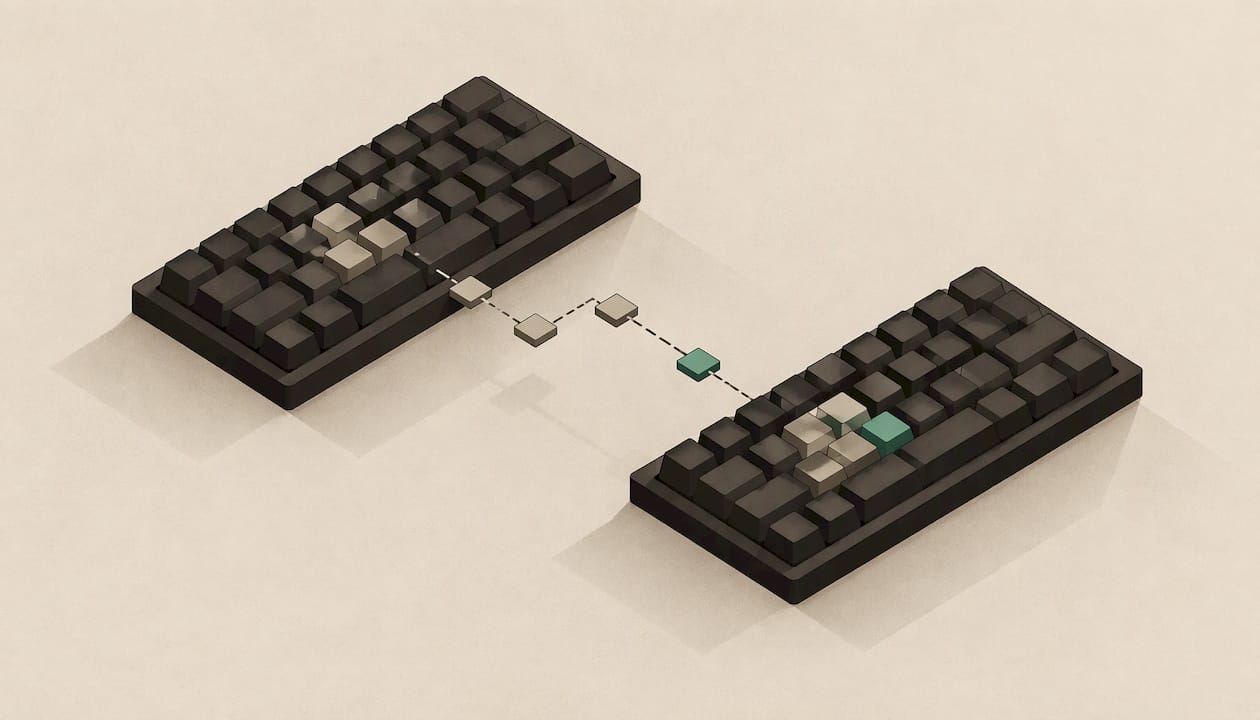
Dvorak works for gaming. Your movement keys simply sit in different places: the WASD cluster becomes comma, A, O and E on a Dvorak keyboard. Most modern games read physical key positions, so they cope on their own. For the rest, you remap once, save the profile and play. Below you will find how to set that up, how to handle the odd stubborn title, and how to pick a keyboard that makes a Dvorak setup comfortable.
TL;DR
- On Dvorak, the physical keys that make up WASD on QWERTY produce comma, A, O and E. Games that bind to key positions keep the familiar shape; others need a remap.
- Steam documents that its legacy keyboard bindings are sent by scancode (a physical key position), so Dvorak players fix any mismatches in the game or the Steam configuration.
- Switching layouts mid-session is possible but easy to get wrong in fullscreen. A one-time remap in each game is the cleaner routine.
- Games with hard-coded, non-remappable keys are the exception, and developers increasingly bind to physical positions to avoid the problem.
- A hot-swappable, low-profile keyboard with a hand-centred layout makes a Dvorak gaming setup easier to tune and more comfortable over long sessions.
Table of Contents
- What actually changes when you game on Dvorak
- Why big games usually just work
- A step-by-step setup for Dvorak gaming
- Switching layouts: when it helps and when it does not
- Games where you need a little more work
- Does Dvorak help your gaming?
- Choosing a keyboard for a Dvorak gaming setup
- KeBe keyboards for Dvorak players
- Our perspective
- FAQ
- Sources
What actually changes when you game on Dvorak
A keyboard layout decides which character each physical key sends. QWERTY is the default for most games, so the movement cluster of W, A, S and D was designed around it: an inverted T under the left hand, with the pinky free for Shift, Ctrl and Tab.
Dvorak moves nearly every letter. The physical keys where W, A, S and D sit on QWERTY now produce comma, A, O and E, as Wikipedia's Dvorak article lists. The League of Legends wiki shows how a game can handle this: its default hotkeys for non-QWERTY layouts follow the same physical key locations as QWERTY, so a Dvorak player gets comma, A, O and E under the standard movement scheme.
That is the good news. Whether a game works without any effort depends on how it reads the keyboard, and there are two ways:
| How the game reads keys | What you see on Dvorak | What you do |
|---|---|---|
| By physical position (scancode) | The WASD shape stays under your left hand, but the key caps no longer match the on-screen hints | Nothing, or relabel the hints in your head |
| By the character the key produces | The game expects the letter W and you press the key that now types comma | Rebind each action in the game's settings |
| By hard-coded keys with no rebinding | The default keys may sit in awkward spots | Use a layout switch for that title |
The second row is where most of the setup work lives, and it is a five-minute job in most games.
Why big games usually just work
Developers on GameDev StackExchange explain the robust approach: listen for scancodes, which are physical key positions unaffected by layout, and convert to characters only when displaying a prompt. That is why many large releases with international audiences play correctly on AZERTY keyboards, where movement becomes ZQSD, and on Dvorak too.
Steam takes the same approach. Its Steamworks documentation says legacy keyboard bindings are sent by scancode, so "WASD" in the configurator maps to the keys in those physical positions on your system layout. It also notes that with a non-default layout such as Dvorak or Colemak, you fix the bindings in the game or in Steam's configuration. In practice: open the Steam Input configurator or the game's controls screen, check what each movement key shows, and adjust.
If you play on a laptop, the keyboard is part of the setup too. A laptop keyboard replacement guide explains how to match and fit a new keyboard, and it is worth reading before you decide whether to keep a built-in board or move to an external one for gaming.
A step-by-step setup for Dvorak gaming
This routine works for nearly every PC game.
1. Set your system layout first
Install Dvorak in your operating system and make it your default. Do this before launching any game, because many titles read the layout when they start. Some games only pick up a layout change after a restart.
2. Open the controls screen before your first match
Look at what the game shows for forward, left, back and right. If you see comma, A, O and E, the game followed your layout and you are done. If you see W, A, S and D but the keys do not respond as expected, the game is reading characters and you need to rebind.
3. Rebind movement, then everything around it
Set movement to comma, A, O and E. Then look at the keys nearby that games like to claim: reload, crouch, interact, ping and chat. A community Stardew Valley guide shows what a full remap looks like: up on comma, left on A, down on O, right on E, with chat moved to H instead of T so it sits where your hand already is. Treat it as a model for your own game rather than a rulebook.
4. Consider shifting one key right
Many players move from WASD to ESDF so the index finger rests on a home key with a tactile marker and the pinky gains space for extra binds. On Dvorak the same idea means choosing the cluster that keeps your ring and index fingers on the home row, then building outward. Pick one and keep it identical across games, because muscle memory is the real benefit.
5. Save the profile
Use the game's saved profile, cloud sync, or Steam Input configuration so a reinstall does not send you back to step three. Developers on the Unreal Engine forum describe per-player runtime rebinding with optional layout presets as the practical fix, because no developer can cover every layout in advance. When a game offers presets, choose the one closest to Dvorak and edit from there.
6. Handle the punctuation keys with care
Comma and period are the keys most often rejected or shown badly. A few games will not accept punctuation as a movement key, and some display it as a question mark in on-screen prompts. If a game refuses comma, shift your whole cluster to the keys it does accept, such as the ones next to A, O and E, and keep the same relative shape.
Switching layouts: when it helps and when it does not
Plenty of Dvorak users keep QWERTY handy for gaming and use Dvorak for everything else. It is a legitimate workflow and there are good tools for it.
The keymeleon project documents dedicated hotkeys for each layout and per-application switching, so a game window can trigger QWERTY while your desktop stays on Dvorak. A keyd issue on Linux shows another approach: Dvorak stays the default layer, and a QWERTY layer takes over for games so WASD sits where the game expects it.
The weak point is manual switching. A fullscreen game gives you no layout indicator, so an accidental switch can go unnoticed until your character walks the wrong way. A Minecraft bug report captures the trap well: because A sits on the same key in both layouts, you can be on the wrong layout and only notice when you strafe.
So use automatic, per-application switching if you want a QWERTY game profile. If you prefer one layout all day, remapping is the cleaner path, since your hands learn one set of positions for both work and play.
Games where you need a little more work
A few categories deserve a plan.
Games with hard-coded WASD. Wikipedia's article says games with hard-coded WASD keybinds are practically impossible to play on Dvorak, while others detect the layout or allow a manual tweak. For those titles, check the game's settings first. A small number of titles store controls in a config file, and community guides sometimes explain the edit. One SpyParty guide shows how to set controls through Windows virtual-key codes in a properties file. For a title with no rebinding at all, a per-application layout switch is your route.
Games running through Wine or Proton on Linux. A WineHQ forum report describes Dvorak being mis-detected, so games that played fine on Windows needed remapping. If you game on Linux, expect to check each title's keys once.
Games with heavy chat. If you type a lot between actions, a layout switch is awkward, because you will be on the wrong layout for one of the two tasks. Remap chat to a key that is easy to reach, and your typing stays on Dvorak.
Before you buy a game, you can check its remapping support. The PCGamingWiki list covers 8,046 games and sorts them by native remapping, limited remapping, manual fix or no native support, which tells you what to expect before you install.

Does Dvorak help your gaming?
The honest answer is that Dvorak is built around comfort and finger travel, and gaming is long sessions at the keyboard. A 2003 comparison of layouts by Pieter Buzing reports that in West's experiments QWERTY users reached 81.95 words per minute while Dvorak-trained users reached 84.90, about 4% more, and that Dvorak has a clear advantage in required hand movement.
That hand-movement point is what matters at a game desk. Less finger travel is the aim of the layout, and it is the same aim behind a keyboard with a hand-centred letter block. If you play and type for hours, comfort is the benefit to build your setup around.
Be wary of precise win-rate claims. Some gaming sites publish figures for how layout changes results in shooters, but they attribute them to their own benchmarks rather than peer-reviewed work, so treat them as colour rather than evidence. Your reaction time will come from practice with whatever keys you choose, so settle on one scheme and stick with it.
One more point of realism: if you touch-type on QWERTY today, you will be slower on Dvorak until you retrain. Gaming muscle memory is separate from typing, so you can learn the new movement cluster in days. If you are also building up your typing, our plan to learn Dvorak and our guide to a typing trainer keyboard give you a structure, and the comparison in Dvorak vs QWERTY helps if you are still deciding.

Choosing a keyboard for a Dvorak gaming setup
You can game on Dvorak with any keyboard, but a few features matter more for this setup.
- Hot-swappable switches. Gaming on Dvorak means a different set of keys takes the heavy use: comma, A, O, E and their neighbours. Swapping switches lets you give those keys the feel you want without soldering.
- Low-profile switches. Shorter travel suits quick repeated taps and keeps your wrists lower.
- Per-key lighting. Lighting a movement cluster in one colour makes the new positions easy to find during the first weeks.
- A straight-column grid. A grid where keys line up vertically rather than staggering means your fingers move up and down their own column. See our comparison of the ortholinear grid and staggered layouts, and the guide to mechanical vs membrane keyboards if you are choosing a switch type.
- Built-in USB-C ports. A hub on the keyboard keeps your mouse and headset close without extra adapters.
If you also write code between matches, the Programmer Dvorak guide and Dvorak for programming cover how the layout handles symbols. For the wider picture of other layouts, see alternative keyboard layouts.
KeBe keyboards for Dvorak players
KeBe builds keyboards around the Matrix-Dvorak layout, with a straight-column key grid and hand-centred letter placement designed to minimize finger movement. The range includes the mechanical KeBe v2 and the slim KeBe Lite, with low-profile switches, hot-swappable keys, per-key RGB lighting, integrated USB-C ports and a hub, a screwless nylon case, a typing trainer, autocorrect and a dual-spacebar design. Every keyboard is assembled by hand in Canada, and pre-orders and a waitlist are available for upcoming models.
See the current range on the KeBe Canada store.

If you want to read more about us first, our home page explains the layout and the keyboards.
Our perspective
We build keyboards for people who type all day and play in the evening, and those are very often the same people. Most of them tell us the same thing: they want one layout and one keyboard that feels right for both.
That is why we think the right answer for Dvorak gaming is not a constant switching routine. It is a keyboard where the letters sit under your hands, the switches suit the keys you use most, and your key bindings are saved once and left alone. Our Matrix-Dvorak layout puts the letters in straight columns so your fingers travel less, and hot-swappable switches let you tune the feel of your movement keys.
Game developers are moving the same way. Binding to physical key positions and letting players rebind at any time is the approach that works for every layout, and it is the one we would like to see in every game.
Set your layout, set your binds, and spend your attention on the game.
Joshua
FAQ
Is Dvorak good for gaming?
Yes. Many games read physical key positions, so your movement cluster sits under your left hand as comma, A, O and E. Where a game does not follow your layout, a one-time remap fixes it, and you keep the comfort Dvorak offers during long sessions.
What are the WASD keys on Dvorak?
The physical keys that give W, A, S and D on QWERTY produce comma, A, O and E on Dvorak. Some games detect this and adjust automatically, and others let you set the keys by hand.
Can I switch between Dvorak and QWERTY while playing?
Yes, with a system shortcut or a per-application tool. Automatic switching by game window is more reliable than pressing a shortcut, because fullscreen games show no layout indicator and a wrong layout is easy to miss.
Which keyboard layout is best for gaming?
The one you have practised. QWERTY is what most games assume by default, and Dvorak works well once your keys are remapped or the game follows physical positions. Choose the layout you want for typing comfort and build your game binds around it.
Sources
- Dvorak keyboard layout (Wikipedia)
- Controls and Hotkeys: Directional Movement (League of Legends Wiki)
- How can I handle different keyboard layouts? (GameDev StackExchange)
- Legacy Mode Bindings (Steamworks Documentation)
- Laptop keyboard replacement guide (MobSpares)
- Stardew Valley Dvorak guide (Steam Community)
- Best way to bind to different keyboard layouts (Unreal Engine forums)
- keymeleon (GitHub)
- switching to default layout, keyd issue 652 (GitHub)
- MC-630 Keyboard binding bug (Mojira)
- Setting key bindings for Dvorak in SpyParty (Steam Community)
- X keyboard layout (Dvorak) being treated incorrectly (WineHQ forum)
- List of games that support keyboard and mouse remapping (PCGamingWiki)
- Comparing Different Keyboard Layouts, Pieter Buzing (2003)