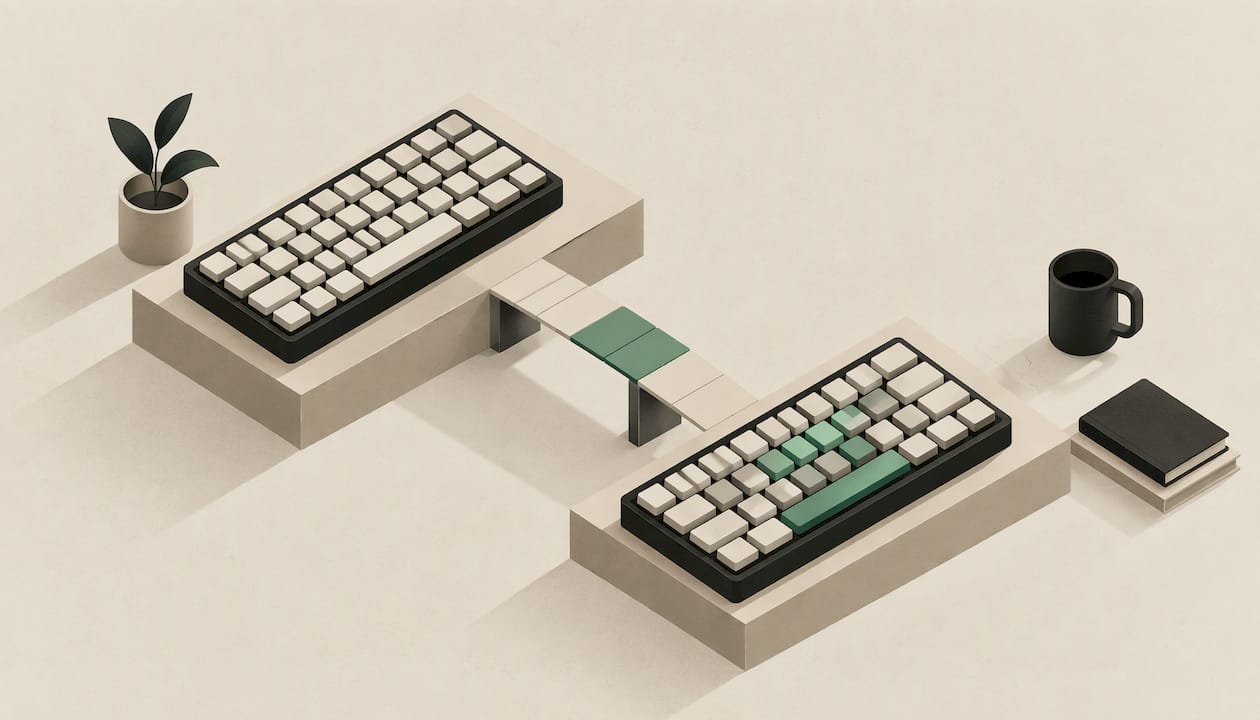
The fastest way to learn Dvorak is to commit to it fully: enable the layout in your operating system, practise in short daily sessions that start on the home row, put accuracy ahead of speed, and type on a keyboard whose keys match what your fingers are learning. Plan on a few weeks to feel comfortable and a few months to match your old speed. This guide gives you the whole routine, including the Windows setup, the shortcut problem and what to do on computers that aren't yours. We build Matrix-Dvorak keyboards in Canada, so we've written it with the layout's practical side in mind.
TL;DR
- Dvorak puts the most-used letters, including all the vowels, on the home row, so your fingers travel less.
- Add the layout in your system settings, keep QWERTY installed as a fallback, and practise 15 to 30 minutes a day rather than in occasional marathons.
- Learn row by row, starting with the home row, and chase accuracy first. Speed follows.
- Expect your typing to feel slow at first. Most people need a few months, sometimes up to a year, to regain their previous speed.
- Decide in advance how you'll handle Ctrl+C/V, game keybinds and shared computers.
Table of Contents
- What Dvorak is and what to expect
- Before you start: set yourself up to succeed
- How to enable Dvorak in Windows
- A step-by-step plan to learn Dvorak
- Habits that make the difference
- Shortcuts, games and shared computers
- Our perspective
- A keyboard built for learning Dvorak
- If you write code
- A realistic first month
- FAQ
- Sources
What Dvorak is and what to expect
The Dvorak Simplified Keyboard was patented in 1936 by August Dvorak and William Dealey. Its design idea is simple: put the letters you use most where your strongest fingers already rest. All five vowels sit on the left side of the home row, and the layout places about 70% of letter keystrokes on that row. On QWERTY, by comparison, you leave the home row constantly to type ordinary English words.
That design is why people try it: less reaching, less hopping between rows, and a more even rhythm between the hands. If you want a deeper comparison before you commit, our Dvorak vs QWERTY guide walks through the trade-offs, and this overview of alternative keyboard layouts shows where Dvorak sits among the options.
As for the learning curve, be realistic. Switching from QWERTY takes at least a few months, and possibly a year, to regain your current speed. The first week is the hardest: you'll type slower than you did as a child, and your muscle memory will keep firing QWERTY positions. That's normal and it passes. What matters is that you set the project up so that you keep practising through that stretch.
Before you start: set yourself up to succeed
A few decisions made on day one decide whether you stick with it.
Pick your starting moment
Don't begin the week before a deadline. Many people start on a quieter stretch, such as a holiday week, because the first days cost you real output. If your job depends on typing all day, a common approach is to practise in dedicated sessions first and then switch your everyday typing once you can handle a few words per minute without looking down.
Decide how you'll measure progress
Track two numbers: words per minute (WPM) and accuracy. Check them at the same time each day, using the same kind of text. Your WPM will wobble from day to day, so look at the weekly trend instead. Accuracy is the number to protect: errors build bad habits, and every mistyped letter teaches your fingers the wrong path.
Get your hands on the right keys
You have two options for the physical keys. You can keep your QWERTY caps and learn to type without looking at them, which many people do from the start anyway. Or you can type on a board whose keycaps actually show the layout. Printed legends help in the first two weeks, when you'd otherwise stop to hunt for a letter. On our boards the Matrix-Dvorak layout is built in, so the legends match what you're learning, and the hot-swappable design lets you change switches without soldering.
How to enable Dvorak in Windows
You don't need any special software to get started. In Windows 11, open Settings, go to Time & language, then Language & region, and add a keyboard layout under the options for your installed language. Pick the Dvorak variant from the list. Microsoft's page covers both Windows 11 and Windows 10, where the menus are named slightly differently.
Once it's added, you can switch between layouts from the language indicator in the taskbar. Windows also lets you cycle layouts with a keyboard shortcut (the commonly used one is Windows key + Space), so changing back takes a second.
A few practical tips:
- Keep QWERTY installed. You'll want it for the first weeks, when you need to type something urgent, and later for other people's computers.
- Add it once, per user account. Layout choices belong to the account, so on a shared household PC your own account keeps its Dvorak setting and others keep theirs.
- Learn the switch shortcut early. If you share a computer, being quick at changing layouts matters more than it sounds. Frequent switching is a point of friction in multi-user households.
The OS layout is only half of the story, though. If you type on a board labelled QWERTY, the software layout works, but your eyes keep getting contradicting information. That's one reason we make keyboards natively in Matrix-Dvorak.
A step-by-step plan to learn Dvorak
The plan below follows the order that most structured courses use: home row first, then outward. Keep each session short and focused. Fifteen to thirty minutes of concentrated practice beats two hours of frustrated typing.

Step 1: Learn the home row (days 1 to 3)
Start with the keys under your fingers at rest. On Dvorak, the left hand covers A, O, E, U and the right hand covers H, T, N, S. Type short drills that mix these letters and say each letter in your head as you press it. Don't look down. If you slip, slow down.
This is the step where the layout's logic starts to show: you'll notice that a surprising number of short words can be typed without leaving the row at all. That's the 70% figure showing up in your own hands.
Step 2: Add the upper and lower rows (week 1 to 2)
Add a few new keys per session, not whole rows at once. A training progression that starts with a handful of keys on the home row and then adds the upper- and lower-row letters, followed by punctuation and capitals, keeps you from being overwhelmed. Reintroduce the home row in every session so it stays automatic.
We built a typing trainer into our approach for exactly this stage. It teaches one letter at a time, and our free Dvorak typing trainer is the place to start. For more on practising on a layout that fits your hands, see our guide to the typing trainer keyboard.
Step 3: Punctuation, capitals and numbers (week 2 to 4)
Punctuation is where many learners stall, because the symbols you use in email and code don't sit where QWERTY taught you. Practise common combinations in context: a comma and a space, a full stop and a capital, quotation marks and brackets. Then add the number row, which is the same on both layouts but needs retraining because your fingers now come from a different home position.
Step 4: Type real text (week 3 onward)
Move from drills to real sentences: a paragraph from an article, an email draft, your own notes. Real text mixes patterns the way real work does. Keep your target modest. If you can type a paragraph at a steady pace with few errors, raise the speed a notch next week.
Step 5: Move your daily typing over (week 4 onward)
When practice sessions feel comfortable, begin using Dvorak for low-stakes real work: chat messages, personal notes, search queries. Keep QWERTY on hand for anything urgent. Over the following weeks, increase the share of your typing that's Dvorak. Many people reach daily-driver comfort within a couple of months, but your own timeline depends on how much you practise and how fast you type today.
Step 6: Retire the safety net
When you notice you've stopped reaching for the QWERTY switch, you've made it. Your speed will keep creeping up for months after that.
Habits that make the difference
- Practise daily, even briefly. Consistency beats duration. Ten minutes every day does more than an hour on weekends.
- Look at the screen, not the keys. The trick is to let your fingers learn positions rather than your eyes. Row-by-row teaching works because typing is a skill your hands learn through structure.
- Stop when you're tired. Errors climb as focus drops, and you don't want to practise mistakes.
- Keep your posture neutral. Wrists straight, shoulders relaxed. If comfort is part of why you're switching, an ergonomic keyboard supports it.
- Expect plateaus. Speed rarely climbs in a straight line. A flat week often comes right before a jump.
Shortcuts, games and shared computers
Three situations trip up almost every new Dvorak typist. Decide your approach to each one before you meet it.
Keyboard shortcuts
Shortcuts such as Ctrl+C, Ctrl+V and Ctrl+Z were designed around QWERTY positions, where Z, X, C and V sit together under your left hand. On Dvorak they're scattered. Many users adopt a Dvorak-QWERTY arrangement in which the layout reverts to QWERTY positions while a Control key is held, and on Windows an AutoHotkey script can reproduce that behaviour. Others simply learn the new positions, which takes a few weeks of deliberate use. Either way is fine. What doesn't work is changing your mind every day.
Games
Movement keys such as WASD sit in a natural cluster on QWERTY. On Dvorak the same physical keys produce different letters, so in-game prompts and your muscle memory disagree. The standard fix is to rebind the controls in the game's settings so that movement lands on the same physical keys, or to use a remap tool. Gamers who want fast, responsive keys and a layout they can customise will find that hot-swappable switches and per-key RGB lighting on our boards make it easy to mark the keys you've rebound.
Shared or unfamiliar computers

On a computer you don't control, you may not be able to change the layout, and you'll be typing QWERTY at reduced speed. People who've made the switch describe slow typing on QWERTY and the need to change layouts on unfamiliar machines. Your options are modest and practical: learn the layout-switch shortcut so you can change it in seconds where allowed, keep a little QWERTY practice going each week so the old skill doesn't vanish, or carry your own keyboard. A board with a built-in layout is the simplest of the three, since it works wherever you can plug in USB. Research on people who moved between layouts also found that switching back requires conscious concentration, which is another reason to keep both skills alive.
Our perspective
We don't think the hardest part of learning Dvorak is the layout. It's the mismatch. You retrain your fingers for a new arrangement, but you keep looking at keycaps, shortcuts and a board that tell you something else. Every contradiction costs concentration, and concentration is what you're short on in the first month.
That's why we designed our keyboards around the Matrix-Dvorak layout, a straight-column key grid with hand-centred letter placement, so your fingers move less and the legends match what you're practising. A dual spacebar and low-profile switches are part of the same idea: reduce finger movement and typing fatigue.
Practice should be easy to start. We include a typing trainer for learning one letter at a time, and autocorrect to catch the typos that inevitably show up while your hands are still learning. Hot-swappable switches and per-key RGB lighting let you tune the board to your preferences and mark the keys you're still memorising.
If you're going to make this change, make it once and make it well. Our advice is to set up a board where the layout is no longer a thing you fight, and spend your effort on practice.
Joshua
A keyboard built for learning Dvorak
If you want your hands and your keycaps to agree from day one, our keyboards are made for it. KeBe keyboards use the Matrix-Dvorak layout, come as mechanical or slim low-profile models such as the KeBe v2 and KeBe Lite, include a typing trainer and autocorrect, and are assembled by hand in Canada. Features include hot-swappable switches, per-key RGB lighting, integrated USB-C ports and a hub, and screwless nylon cases. Pre-orders and a waitlist are available for upcoming models.

Browse the current models in the KeBe store. If you can't decide between switch types, our guide to mechanical vs membrane keyboards explains the difference, and the comparison of 60% vs 75% keyboard sizes helps you choose a footprint.
If you write code
Programmers have an extra consideration: brackets, braces and symbols are used far more than in prose, and standard Dvorak puts some of them in less convenient positions than a coder would like. A variant called Programmer Dvorak moves the symbols to the top row and the digits to the shifted positions. If that's you, read our practical guide to Programmer Dvorak and the discussion of whether Dvorak is worth it for programming before you pick the variant you'll learn, because retraining twice is the expensive route.
A realistic first month
Here's what a typical month might look like if you practise about 20 minutes a day and keep QWERTY as a fallback.
| Week | Focus | What you should feel |
|---|---|---|
| 1 | Home row, then a few keys from other rows | Slow and awkward, but the home row starts to feel logical |
| 2 | Remaining letters, first punctuation | You can type short words without looking down |
| 3 | Punctuation, capitals, numbers, real sentences | Paragraphs are possible, with pauses and errors |
| 4 | Real work in low-stakes situations | Chat and notes in Dvorak feel normal; shortcuts still need thought |
Your own numbers will differ. What matters is the direction: fewer pauses, fewer errors, less looking at your hands.
FAQ
How long does it take to learn Dvorak?
Expect a few weeks of daily practice before typing feels comfortable, and a few months, possibly up to a year, to match your QWERTY speed. Switching takes at least a few months to regain your current speed for most people. Short daily sessions get you there faster than occasional long ones.
How do I switch to Dvorak in Windows?
Open Settings, choose Time & language, then Language & region, and add the Dvorak layout under your language's keyboard options, as Microsoft's support page describes. Keep QWERTY installed so you can change back whenever you need to. You can then switch layouts from the taskbar.
Can I keep using Ctrl+C and Ctrl+V?
Yes. You can learn the new key positions, or use a Dvorak-QWERTY arrangement that keeps shortcut keys in their QWERTY places while Control is held. On Windows, an AutoHotkey script can replicate that shortcut behaviour. Pick one approach and stay with it.
Should I learn the layout on a Dvorak keyboard?
It helps. When the keycaps match the layout, you don't have to stop and work out where a letter lives, and you can spend your attention on accuracy. Our Matrix-Dvorak boards are made for that, and the KeBe store lists the current models.
Sources
- Dvorak keyboard layout, Wikipedia
- Alternative Keyboard Layouts Explained, How-To Geek
- Manage the language and keyboard/input layout settings in Windows, Microsoft Support
- From qwerty to Dvorak to qwerty, JMPInline
- Analysis of Alternative Keyboards Using Learning Curves