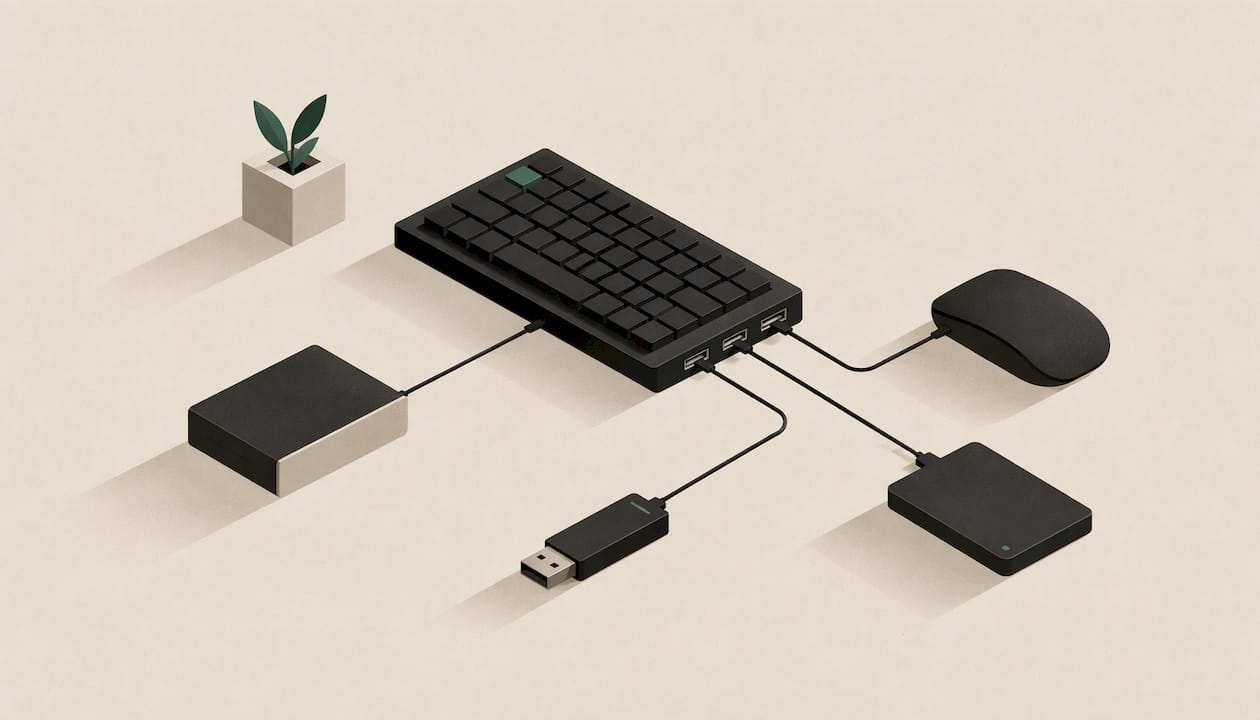
Yes, you can plug a mouse, a flash drive or a wireless receiver into your keyboard, as long as the keyboard has a USB port built for it and is itself connected to your computer. The keyboard then acts as a bridge: one cable runs to the computer, and the devices on the keyboard share that route. It tidies the desk, frees up ports on a laptop and puts a drive within arm's reach. Our KeBe keyboards include integrated USB-C ports and a hub for exactly this purpose.
Below is how it works, how to set it up in a few minutes, and what to check when something isn't detected.
TL;DR
- A mouse plugs into a keyboard only if the keyboard has a USB port meant for devices. Not every keyboard does.
- Some keyboards have two cables: the second one must also be plugged into the computer, or the keyboard's port stays dead.
- A mouse needs very little power and bandwidth, so any ordinary computer port will do. Save fast ports for drives and monitors.
- If a device isn't detected, test it directly on the computer first, then check the keyboard's upstream cable and port.
- To use one keyboard with several computers, you need a Bluetooth keyboard or a switching device, not a pass-through port.
Table of Contents
- What "connecting devices through a keyboard" actually means
- Can a mouse plug into a keyboard?
- Pass-through ports and built-in hubs
- Set it up in five steps
- How much power can the keyboard's port supply?
- If the mouse isn't detected
- What about wireless keyboards and mice?
- Using one keyboard with two computers
- What to look for in a keyboard with a USB hub
- Where KeBe fits
- Perspective
- Ready for a keyboard that doubles as your hub?
- FAQ
- Sources
What "connecting devices through a keyboard" actually means
There are three different things people mean by this phrase, and they work differently.
- Plugging a device into the keyboard's USB port. The keyboard has its own port, and a mouse, flash drive or adapter connects to it. This is what most people searching this phrase want, and it is the focus of this article.
- Pairing a wireless keyboard and mouse with a computer. Nothing is plugged into the keyboard. Both devices connect to the computer over Bluetooth or a radio receiver.
- Sharing one keyboard between two computers. This is a separate problem, covered near the end.
The first approach has a clear advantage: one cable from keyboard to computer, and everything you use daily sits on the desk in front of you.
Can a mouse plug into a keyboard?
Yes, with the right port. A FixSetup guide from June 2026 explains that a mouse can plug into a keyboard only if the keyboard has a dedicated USB port for it, and that the keyboard then acts as a bridge to the PC. The same guide notes that power limits and, in demanding gaming setups, a little extra signal latency are possible.
A keyboard with no such port can't do this, however you try. Look at the back edge or the sides of your keyboard for a USB-A or USB-C socket. A socket that is part of a cable's connector, or a charging-only port, doesn't count.
The older style of mouse and keyboard connectors can confuse the picture. If your gear is very old, ErgoCanada's guide to keyboard and mouse ports describes the round PS/2 plug (purple for keyboards, green for mice) and the older DIN connectors. Those need adapters and are a different world from the USB connection described here.
Pass-through ports and built-in hubs
Two designs sit behind a keyboard's USB port, and the difference explains most setup problems.
Pass-through port. The keyboard has two cables, often joined by a splitter. One carries the keyboard's own data and lighting, and the other gives the keyboard's port its own direct link to the computer. FixSetup says the second plug must go into the PC, or the port stays dead.
Integrated hub. A hub inside the keyboard splits one USB connection into several ports. LaptopJudge's passthrough guide explains that the mouse should appear in the USB device tree beneath the keyboard's hub. The trade-off is that the ports on the hub share the bandwidth and power of a single connection.
For a mouse, that sharing is no problem. Mice and keyboards are low-speed devices, with a maximum of 1.5 Mbps, and they work in any USB port. A hub is a small power bar for your peripherals, much as ErgoCanada puts it: plug it into one port and it gives you more.

Set it up in five steps
1. Connect the keyboard to the computer first
Plug the keyboard's main cable into the computer. If the keyboard has two plugs, connect both. The second one is what powers and activates the keyboard's port, and leaving it out is the most common reason the port seems dead.
2. Choose the computer port that suits what you plug in
Engadget's advice from 2026 is to treat the keyboard and mouse as your least demanding accessories and use the slowest available ports, so faster ports stay free for SSDs, storage and monitors. If your keyboard has a hub with USB 3.x ports and you'll plug more than a mouse into it, Engadget suggests connecting the keyboard to a higher-powered computer port. If it only runs a mouse, a lower-spec port may be fine.
3. Plug the mouse into the keyboard's port
Use the port on the keyboard, not the computer. Most mice are recognized within a few seconds with no software. A wireless mouse's small receiver can go here too.
4. Check that the cursor moves
Move the mouse and click. If nothing happens, jump to the troubleshooting section below.
5. Add the other devices
Flash drives, a headset adapter or a wireless receiver work too. People report using flash drives and Wi-Fi adapters through a keyboard's port without problems. Keep power-hungry gear, such as external hard drives and phone chargers, on the computer's own ports.
How much power can the keyboard's port supply?
A basic mouse is a low-power device. LaptopJudge states that standard USB 2.0 downstream ports provide up to 500 mA and USB 3.x ports up to 900 mA, so you don't need the newest USB speed for a mouse. That is also why a keyboard's port suits a mouse and a receiver but is a poor spot for a portable hard drive.
A simple rule: if the device has its own power supply or sits in the "fast storage" category, plug it into the computer. If it is something you click, type on or talk through, it can go through the keyboard.
One more point for work computers. Company-managed machines sometimes restrict which USB devices are allowed, so a drive that works at home might be blocked at the office. This USB device control guide explains how organizations manage USB ports and hubs, which is useful if your IT department asks why a new device was blocked.
If the mouse isn't detected
Work through these checks in order. They take a few minutes in total.
- Test the mouse directly on the computer. LaptopJudge's checklist starts here. If it works there, the mouse is fine.
- Confirm the keyboard itself works. If typing fails too, the problem is the keyboard's upstream connection, not the port.
- Check for the second plug. FixSetup says a dead port is usually either a keyboard without a pass-through port or a second cable that isn't plugged into the PC.
- Confirm the port carries data. On single-cable keyboards, that guide notes the integrated port may be charging-only.
- Look at the USB device tree. On Windows, a free viewer such as USBTreeView shows whether the mouse appears beneath the keyboard's hub. If the hub is missing from the list, the mouse can't appear through it, so check the cable, the computer's port and try another port.
- Move away from interference. For wireless receivers, AV Access notes that USB 3.0 can interfere with 2.4 GHz wireless mouse and keyboard receivers. If the connection is unstable, use a port farther from the receiver.
What about wireless keyboards and mice?
The wireless route skips the keyboard's ports entirely. With Bluetooth on Windows, you open Bluetooth and devices settings, choose Add a device, select Bluetooth and put the keyboard or mouse into pairing mode. A Microsoft support thread describes the same path and notes that some keyboards need the pair button held for about five seconds until the light flashes.
Wireless gear solves cable clutter but adds batteries and a pairing step for each device. If you type and game for hours, our guides on wired versus wireless keyboards and wired versus wireless latency show what matters for each use.

Using one keyboard with two computers
A keyboard's USB port can't hand your keyboard to a second computer. For that you need either a keyboard with Bluetooth multi-device pairing, a hardware KVM switch (a small box that routes one keyboard, mouse and monitor to several computers), or software that shares input across computers on the same network. For a desk that serves one main computer, a keyboard with its own hub is simpler: fewer boxes, fewer cables and nothing to configure.
What to look for in a keyboard with a USB hub
If you're choosing a keyboard partly for its ports, these are the points that affect daily use:
| What to check | Why it matters |
|---|---|
| Number and type of ports | USB-A suits most mice and receivers; USB-C suits newer drives and accessories |
| How the keyboard connects | One cable is tidier; two cables mean both must be plugged in |
| Port placement | Rear or side ports keep the cable out of your typing space |
| Cable length and routing | The keyboard's cable should reach the computer without strain |
| Power needs of your devices | Low-power gear goes through the keyboard, big drives go to the computer |
Our article on keyboard USB hub benefits goes deeper on how a built-in hub changes a desk setup.
Where KeBe fits
Our keyboards combine the hub with the features typists, gamers and enthusiasts ask for: the Matrix-Dvorak layout, low-profile switches, hot-swappable keys, per-key RGB lighting and a screwless nylon case. They also include integrated USB-C ports and a hub, a typing trainer and autocorrect, and some models have a dual-spacebar design. Every keyboard is assembled by hand in Canada.
If you're curious about the hot-swap feature, see our guide to hot-swappable keyboards. For the layout's benefits, our ergonomic mechanical keyboard guide and the split spacebar explainer cover the details.
Perspective
Most desks we see in photos have the same problem: a laptop or tower with too few ports, a mouse cable running across the desk and a drive plugged in somewhere out of reach. A keyboard is the one device you always sit in front of, so it makes sense for it to be the place where your small accessories connect.
That is why we build integrated USB-C ports and a hub into KeBe keyboards. The same thinking drives the Matrix-Dvorak layout and the straight-column grid: keep what you use close to your hands and reduce the movement between them.
The rule of thumb we'd give anyone is simple. Let the keyboard carry your mouse, receivers and small gadgets, and give your computer's fastest ports to storage and monitors. The desk stays tidy, and each device is where it works best.
Joshua
Ready for a keyboard that doubles as your hub?
KeBe keyboards pair a comfort-focused layout with built-in USB-C ports and a hub, hand-assembled in Canada. Pre-orders and the waitlist for upcoming models are open, so you can be among the first to get one.

See the current models in the KeBe Canadian store, or learn more about the brand on the KeBe home page.
FAQ
Can I plug a mouse into my keyboard?
Yes, if the keyboard has a USB port meant for devices. The keyboard connects to the computer, and the mouse connects to the keyboard. If the keyboard has two cables, plug both into the computer or the port won't work.
Why isn't my mouse working in the keyboard's USB port?
The usual causes are a keyboard without a real pass-through port, a second cable that isn't plugged in, or a charging-only port. Test the mouse directly on the computer first, then check the keyboard's cable and try a different computer port.
Does a mouse in the keyboard's port respond more slowly?
For everyday work, there is nothing you'd notice. FixSetup notes that minor signal latency is possible in high-performance gaming scenarios. If you play competitively, you can test your own setup and move the mouse to a computer port if you prefer.
Which computer port should my keyboard go into?
A basic port is fine for a keyboard and mouse. If your keyboard has a hub with USB 3.x ports and you'll connect more than a mouse, use a higher-powered computer port, as Engadget suggests.
What are old keyboard connectors called?
The common ones are PS/2, a round plug that's purple for keyboards and green for mice, and the older 5-pin DIN. ErgoCanada's port guide lists them and explains the adapters they need.
Sources
- Can I Plug My Mouse Into My Keyboard? (FixSetup)
- Keyboard USB Passthrough Mouse (LaptopJudge)
- Which USB Port Should You Use For Your Mouse And Keyboard? (Engadget)
- Guide to Ports and Plugs (ErgoCanada)
- Which USB Port Should You Use for a Mouse? (eTechnophiles)
- Anyone plug their mouse into their Keyboard USB port? (MMO-Champion)
- KVM Switch That Works with Wireless Keyboard and Mouse (AV Access)
- Add bluetooth mouse and keyboard (Microsoft Q&A)
- USB Device Control guide (Abersecure)