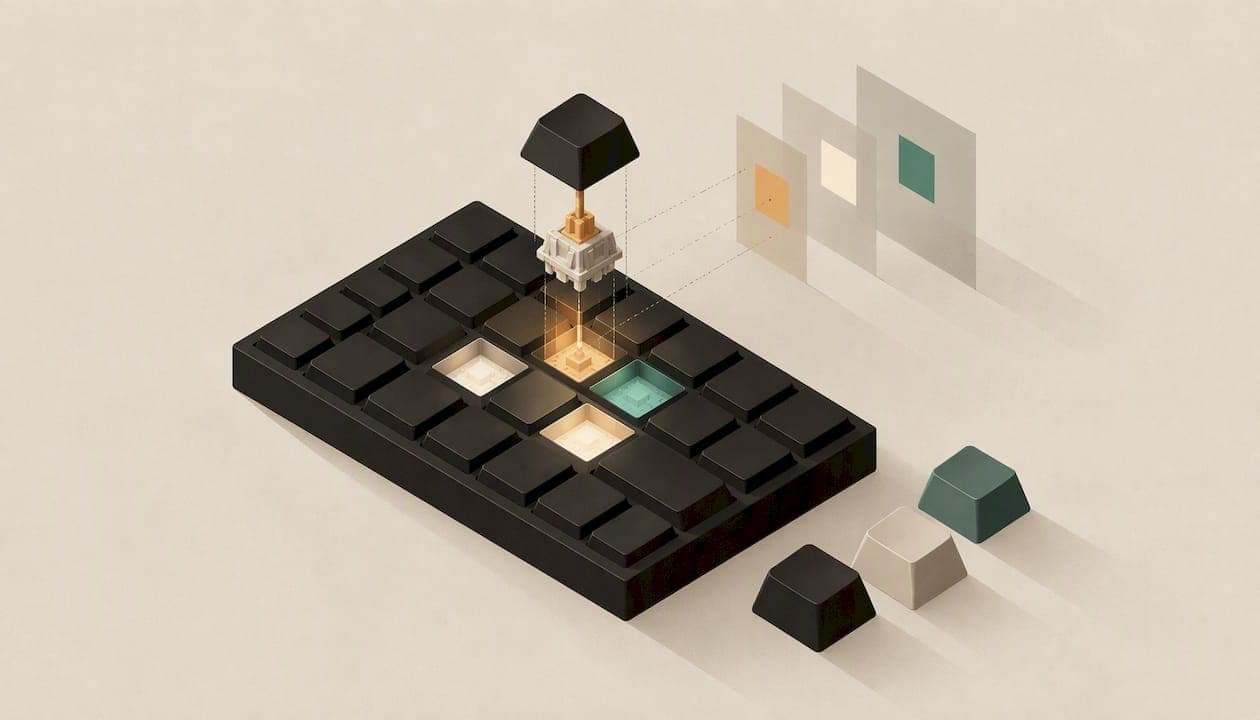
Per-key RGB means every key on a keyboard has its own light that you can set to its own colour, brightness or effect. Reviewers describe it as lighting you can configure with specific colours or effects for individual keys. That is the whole idea. What changes from one keyboard to the next is how finely you can control it, which software you do it in, and what it costs you in battery life on a wireless board.
This guide covers what the term means, how it differs from zone lighting and underglow, which effects you can expect, how customization works, and how to check that a "per-key" label is honest before you buy.
TL;DR
- Per-key RGB gives each key its own individually addressable LED, so you can colour one key, a cluster or a whole layout independently.
- Zone-based lighting only changes whole sections together, and single-colour backlighting cannot vary at all.
- Effects range from static colours and gradients to breathing, waves and reactive typing effects, set through on-board shortcuts or software.
- It is a visibility and personalization feature. It will not make you type faster, and on wireless boards it can cut runtime sharply.
- Check the manufacturer's documentation for how the LEDs are mapped, because the label does not always mean one light per physical key.
Table of Contents
- What per-key RGB actually means
- Per-key RGB vs zone lighting, single-colour and underglow
- What lighting effects you can expect
- How you customize it
- Does per-key RGB make you type better?
- What it does to battery life
- How to check a "per-key RGB" claim before you buy
- Our perspective
- Choosing per-key RGB for your own setup
- See per-key RGB on a KeBe keyboard
- FAQ
- Sources
What per-key RGB actually means
A traditional backlit keyboard has one or a few LEDs shining through the whole board. Per-key RGB puts a small red, green and blue LED under each key, and the keyboard's controller can address each one separately. One explainer compares it to addressable RGB or RGBIC strips, where each LED chip is controlled through software.
In practice that gives you three things:
- Colour per key. Make your WASD cluster red, your arrow keys blue, and leave everything else a soft white.
- Effects that travel across the board. A wave only works if the controller knows where each key sits and can time its colour accordingly.
- Layers and feedback. Some setups light up different keys when you hold a function key, so the lighting doubles as a cheat sheet.
The lighting is a separate feature from the switches under the keycaps. Reviewers routinely list per-key RGB as its own line, apart from the switch type. You can have per-key RGB on a linear, tactile or low-profile board, and you can have a great switch with no lighting at all.
Per-key RGB vs zone lighting, single-colour and underglow
The terms get mixed up on product pages, so here is how they differ.
| Lighting type | What you control | Typical limit |
|---|---|---|
| Single-colour backlight | Brightness, sometimes a pattern | One colour for every key |
| Zone-based RGB | Colour of each section | Keys in a zone light together |
| Per-key RGB | Colour and effect of each key | Depends on software and firmware |
| Underglow | Colour of LEDs shining from under the case | Lights the desk, not the legends |
Single-colour backlighting
Simple backlights wire LEDs in parallel so they all receive the same power. ZMK's documentation notes that in this arrangement individual LEDs cannot be dimmed on their own. It is cheap, reliable and perfectly good for seeing legends in the dark.
Zone-based RGB
Zone systems divide the keyboard into sections whose keys light together. The colours may be adjustable or preset, but you cannot change a single key. If you only want a different colour for the left, middle and right of the board, zones are enough. If you want your Escape key red and nothing else, they are not.
Underglow
Underglow is a different job entirely. Its LEDs sit around or beneath the case edge and cast light onto the desk. It can be paired with per-key lighting, but it does nothing for key legibility. When you compare spec sheets, make sure the "RGB" being advertised is the one under the keys and not just a glow strip.
What lighting effects you can expect
The effects depend on the firmware, but most per-key boards cover a similar range. Open-source firmware documentation lists static colours, reactive typing heatmaps and animations such as waves, breathing and rain. They fall into three groups:
- Static. A single colour, or a gradient where the hue shifts across the board. This is what most people leave on all day.
- Animated. Breathing, rainbow waves and moving chevrons that run whether or not you type.
- Reactive. Keys light up or ripple when pressed, and some effects build a heatmap of the keys you use most, or digital rain patterns.
Reactive effects are the ones where per-key control really earns its place, since the board has to know exactly which key you pressed and light that one. Heatmap effects can also be genuinely useful if you are learning a new layout and want to see which keys you reach for most.
Does the look change with the keyboard?
Yes. In one 2026 review, the reviewer found that south-facing per-key LEDs gave an even, softer glow that stayed visible without being harsh late at night. LED position and keycap design both shape the result. Shine-through legends, translucent keycaps and low-profile switches all change how bright and how even the lighting looks, so the same effect can look different on two boards.
How you customize it
There are three common ways to control per-key lighting. Which you get depends on the keyboard.
On-board shortcuts
Most boards let you cycle effects, brightness and speed with a function-key combination. It requires no software, works on any computer and is the easiest way to set up a keyboard you share between machines.
Configuration software
Open-source firmware lets you adjust effects, brightness and speed through keyboard settings and keycodes, and developers can add their own animations in user files. Graphical configurators built on the same system expose standard menu items for brightness, effect, speed and colour, so you do not need to write any code to use them.
Operating system control
Windows now has a built-in standard for lighting. Its Dynamic Lighting settings let you toggle lighting globally, adjust brightness and prioritize which background app controls ambient lighting. Support for apps controlling compatible HID LampArray devices arrived with Windows 11 Build 23466 and later. The same standard lets apps synchronize lighting across compatible peripherals, which matters if your mouse, keyboard and other gear should match.
On Linux, community tools map LEDs to the keyboard grid. One project's documentation describes individually addressable LEDs as physical LEDs mapped to key positions, which is what lets you click a key on screen and colour it.
If you do not pick an app to control the lighting, the keyboard falls back to the default behaviour stored in its firmware. That is why a board can look the same on a new computer without any software installed.

Does per-key RGB make you type better?
Not by itself. A PCMag Canada review treats it as a customization and visibility feature: it helps with low-light legibility and personal style, but it does not make typing faster or more comfortable on its own. Speed and comfort come from the layout, key spacing, switch feel and key travel.
Where lighting does help:
- Dim rooms. Evenly lit legends make it easier to find keys at night.
- Learning a new layout. Colouring home-row keys or a specific finger's columns gives you landmarks while your muscle memory forms.
- Gaming. Colouring movement keys, ability keys or macro keys makes them quick to find.
- Editing and creative work. Highlighting shortcut clusters can serve as a reminder for software you do not use every day.
If comfort is your main goal, start with the board's shape and layout, then add lighting on top. Our guide to ergonomic versus regular keyboards walks through that decision.
What it does to battery life
On a wired keyboard, power draw barely matters. On a wireless one, lighting is the biggest drain, and the published numbers show how large the gap can be:
- One wireless 60% keyboard's maker states 30 to 90 hours with the LEDs on and up to 150 hours with them off.
- A gaming board's maker estimates up to 200 hours with per-key RGB off, while the reviewer got several days of use with it on.
- Another review measured 72 hours with RGB on, against 798 hours over 2.4 GHz and 1,800 hours over Bluetooth with it off.
Those are different keyboards with different batteries, so do not compare them directly. The pattern is what matters: runtime depends heavily on how bright your lighting is and which effects you run. If you go wireless, lower brightness, pick a static colour and turn lighting off when you leave your desk. Our comparison of wired and wireless keyboards covers the other trade-offs.
How to check a "per-key RGB" claim before you buy

The label is common, but it is not always as precise as it sounds. One analysis warns that it does not always guarantee one independently controlled light for every physical key, and suggests checking the LED mapping in the documentation or testing it yourself. ZMK's developers make a related point: lighting names can be ambiguous, and what matters is the underlying hardware.
A short checklist:
- Read the spec sheet for the LED count. It should roughly match the key count.
- Look for software support. Find out whether you can set individual keys, not just pick presets.
- Check which operating systems it supports. Some configurators are limited to one platform.
- Ask whether settings are stored on the keyboard. On-board memory means your lighting follows you between computers.
- Look at the keycaps. Shine-through legends and light-coloured caps show colour better than dark opaque ones.
- Check the return policy. Lighting looks different in person than in a photo.
Also consider how lighting interacts with the rest of the keyboard. Hot-swappable sockets let you change switches without soldering, and our guide to hot-swappable keyboards explains what to look for. Low-profile boards put the LEDs closer to the keycap, which affects the glow, and we cover that in our piece on low-profile keyboards.
Our perspective
We build KeBe keyboards around a simple idea: the layout and the hardware should do the work, and the lighting should make that work easier to see.
That is why per-key RGB sits alongside the Matrix-Dvorak layout, the straight-column key grid and the hand-centred letter placement on our boards. When you are learning a new layout, being able to colour individual keys is practical. You can mark the home row, set a different colour for each finger's columns, and fade the colours out once the layout feels natural.
Our keyboards combine per-key RGB with hot-swappable keys, low-profile switches, built-in USB-C ports and a hub, and a typing trainer. We designed them so lighting is one part of a keyboard you personalize, not a gimmick bolted on. Every board is assembled by hand in Canada.
If you are choosing between boards, our advice is to decide on layout, size and switch feel first, then look at the lighting. Per-key control is what lets you tune the result to your room, your desk and your own eyes.
Joshua
Choosing per-key RGB for your own setup
A few scenarios show how the decision plays out.
You type for a living and work in a dim room. Pick a soft, static colour at low brightness, perhaps a warmer tone for the alpha keys and a different one for modifiers. You get legibility without distraction, and on a wireless board you save battery.
You game. Reactive effects and highlighted key clusters are the draw. Choose a board with on-board memory so profiles follow you to a friend's PC or a tournament machine.
You are switching to a new layout. Use colour as scaffolding. Mark the home row, then the keys you keep missing, and dim the markings as your accuracy improves. A typing trainer pairs well with this approach.
You like to tinker. Prioritize open configuration and hot-swappable sockets. Our guide on choosing between mechanical and membrane keyboards helps if you are still deciding on the base technology, and the one on 60% versus 75% keyboards helps with size.
Whichever you are, treat lighting as the finishing layer. Switch feel matters more day to day, and our comparison of linear and tactile switches is a good place to settle that first.
See per-key RGB on a KeBe keyboard
If you want per-key lighting on an ergonomic board, our keyboards pair it with the Matrix-Dvorak layout, hot-swappable keys, low-profile switches and a built-in USB hub, assembled by hand in Canada. You can see the current models, pre-order options and waitlists in the KeBe Canadian store, or read the details of the KeBe v2 mechanical low-profile keyboard.

Check the store page for current availability and pricing, since models and pre-order windows change.
FAQ
Is per-key RGB the same as RGB backlighting?
No. Plain RGB backlighting may only let you change the colour of the whole board or of a few zones. Per-key RGB lets you control each key separately. When a product says only "RGB", look in the specs for "per-key" or the number of individually addressable LEDs.
Can I turn off per-key RGB?
Yes, on virtually every keyboard that has it. Most boards offer a shortcut to lower brightness or switch lighting off, and software lets you save a profile with the lights disabled. On Windows 11, Dynamic Lighting settings include a global toggle for compatible devices.
Does per-key RGB drain a wireless keyboard's battery?
Yes, noticeably. Published figures show runtimes many times longer with lighting off. Lower brightness and simple static colours stretch the battery furthest. Wired keyboards are not affected in any way you would notice.
Do I need software to use per-key RGB?
Not always. Many keyboards cycle through effects with a function-key shortcut. You need software or a configurator only when you want to colour individual keys, build custom profiles or sync lighting with other devices.
Will per-key RGB improve my typing?
Not directly. It helps you see the keys in low light and lets you mark keys while you learn a layout. Speed and comfort come from the layout, spacing and switches, not the lighting.
Sources
- What is Per Key RGB? (Explained), Every Home Tech
- Lighting, ZMK Firmware
- RGB Matrix Lighting, QMK Firmware
- RGB Matrix Configuration, the-via/keyboards
- Dynamic lighting, Microsoft Learn
- Device Maps and Graphics, Polychromatic Docs
- What Is Per-key RGB Addressing?, Laptop Judge
- Epomaker RT85 review, Tech4Gamers
- Asus ROG Strix Flare II Animate review, Ars Technica
- Alienware Pro Gaming Wireless Keyboard review, MakeUseOf